
Countdown Timer
Use our free Countdown Timer to count down to a specific time or event directly in your browser. Whether you need a timer for workouts, cooking, studying, meetings, presentations, breaks, online classes, or special events, this simple tool helps you keep track of remaining time. Set your desired duration, start the countdown, and watch the remaining time decrease automatically.
ONLINE TIMER
Countdown Timer
Set your time and start the countdown
READY
00:05:00
HOURS : MINUTES : SECONDS
:
:
SPACE
Start / Pause
R
Reset
How to Use the Countdown Timer
Enter the hours, minutes, or seconds you want to count down. Click Start to begin the timer. You can use Pause when you need to temporarily stop the countdown and Reset to return it to the original setting.
The Countdown Timer works directly in your browser, making it convenient to use on computers, tablets, and mobile devices without installing additional software.
What Is Countdown Timer?
A Countdown Timer is a timekeeping tool that counts backward from a selected duration toward zero. It is useful whenever you need to know how much time remains for a task, activity, break, or event. A timer is a device that measures a time interval, and the Timer article on Wikipedia explains the idea in more detail.
Why Use an Online Countdown Timer?
An online countdown timer provides a quick and convenient way to manage time without downloading an app. It can help you stay focused, organize activities, manage breaks, and keep track of important time limits.
Popular Countdown Durations
Here are some durations people set most often, and the quickest way to set each one. Every duration below works with the hours, minutes and seconds fields, and the preset buttons add minutes on top of whatever time is already set.
| Duration | Best for | How to set it |
|---|---|---|
| 30 seconds | A short break or interval | Set Seconds to 30, then press Start. |
| 5 minutes | A quick break — this is the default | Already set when the page loads (00:05:00). Just press Start. |
| 25 minutes | A focused work block | Set Minutes to 25, then press Start. |
| 40 minutes | A workout or a class | Set Minutes to 40, then press Start. You can also press +10 MIN four times. |
| 1 hour | A study session | Set Hours to 1, then press Start. The display shows 01:00:00. |
| 75 minutes | A long task | Set Hours to 1 and Minutes to 15, then press Start. |
Minutes and seconds are capped at 59 each, so for anything over an hour, use the Hours field as well.
How the Presets, Pause and Reset Work
The three preset buttons add time instead of setting a fixed duration. Pressing +1 MIN on the 5-minute default gives 6 minutes, +5 MIN on 00:00:59 gives 00:05:59, and +10 MIN on 00:05:59 gives 00:15:59. This makes it easy to extend a running plan without typing a new time.
Pause genuinely freezes the countdown. The status changes to PAUSED, the display stops, and the Start button changes to RESUME. Pressing RESUME continues from the same time, it does not start over. Reset is different: it returns the display to the duration you set, not to the 5-minute default, and the status goes back to READY. If you want to measure how long something takes instead of counting down to a limit, use the Stopwatch.
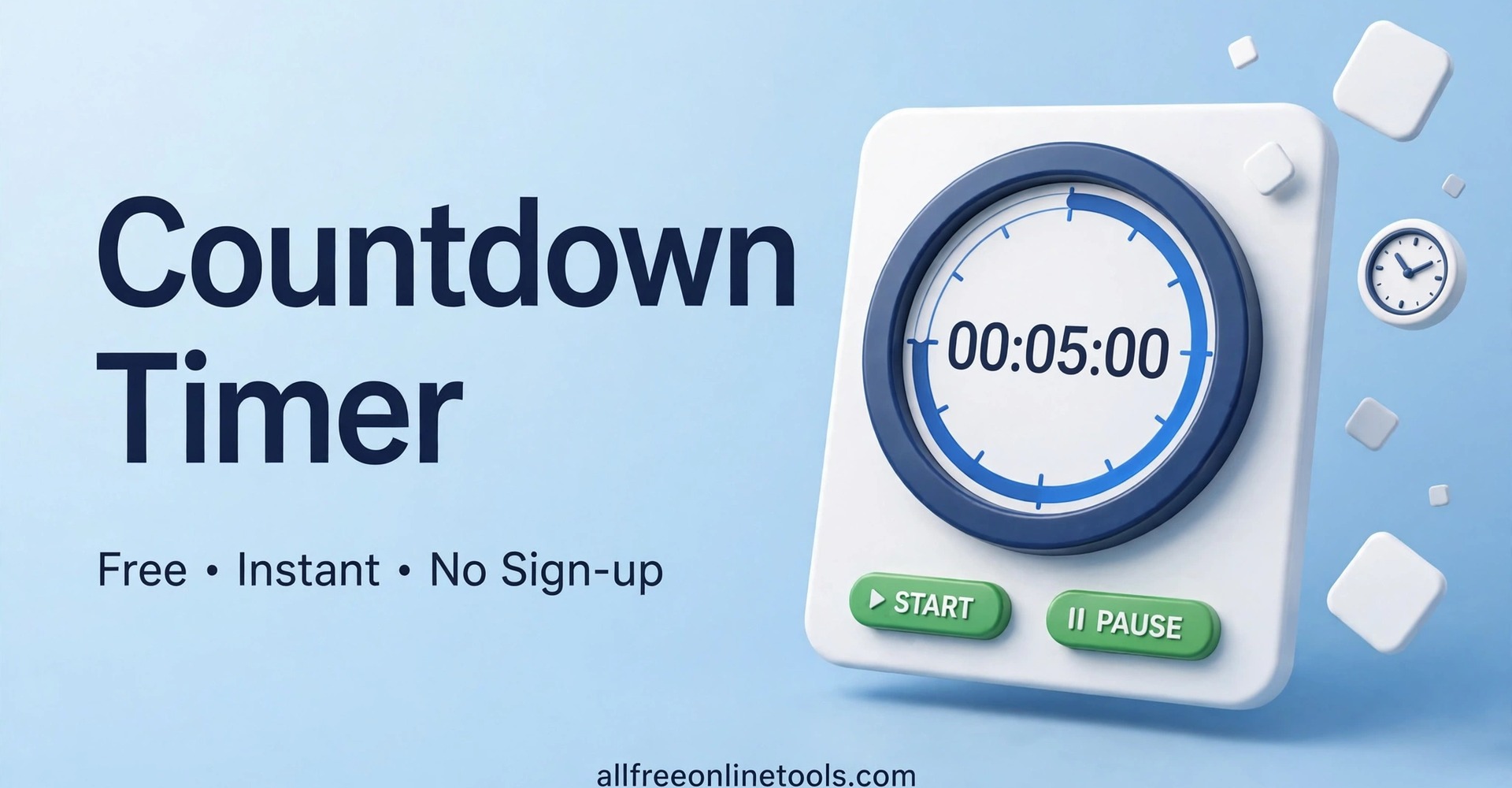
When the countdown reaches zero, the display shows 00:00:00, the status changes to TIME’S UP, the ring becomes a complete dark-blue circle, and a short beep plays. There is no mute switch on the page, so keep the volume in mind if you are in a quiet room. If you press Start at 00:00:00, nothing happens — the timer stays READY and shows no error message.
Countdown Timer vs Stopwatch: Which One Do You Need?
A countdown counts down to zero, so it is the right choice when you have a time limit — a workout interval, a cooking time, a study block, or a break. A stopwatch counts up from zero, so it is the right choice when you want to measure how long something took, with milliseconds and laps.
Use the countdown when the end matters, and the stopwatch when the duration matters. Both live on the same site, so you can switch between them for different tasks.
Frequently Asked Questions
A Countdown Timer counts down from a selected duration toward zero.
Enter your desired time and click the Start button.
Yes. Use the Pause button to temporarily stop the countdown.
Click Reset to return the timer to its starting duration.
Yes. It can be used for exercise intervals, rest periods, and workout sessions.
Yes. Set the required cooking time and start the countdown.
Yes. It can help you set focused study or break periods.
Yes, you can use the timer through a supported mobile browser.
No. The online Countdown Timer works directly in your browser.
Yes. Our online Countdown Timer is free to use.
It starts with 5 minutes (00:05:00) and the status READY. Change the hours, minutes or seconds first if you need a different duration.
They add time. Pressing +1 MIN on the 5-minute default gives 6 minutes, and +5 MIN on 00:00:59 gives 00:05:59.
The display shows 00:00:00, the status changes to TIME'S UP, the ring becomes a complete dark-blue circle, and a short beep plays. There is no mute switch on the page.
Yes. Pause freezes the countdown and the Start button changes to RESUME. Pressing RESUME continues from the same time.
Hours are supported — 1 hour shows as 01:00:00. Minutes and seconds are capped at 59 each.
Nothing happens. The timer stays READY and shows no error message.
Countdown to Zero With Our Online Timer
Set your desired duration and keep track of remaining time with our free online Countdown Timer.
Start your timer, stay focused, and manage your time with ease.